APPLE PRINTER DRIVER APPLICATION NOTES
Apple
printer drivers will support all recent FGL printers. (NOTE: Old FGL
printers may not support the use of printer drivers. FGL driver support
was first introduced in 2000 on FGL22/42 printers.) The driver will allow you to communicate
through driver dependent applications (Word, Excel, Safari)
and/or access the printer over a network. Please note that the only
printer status information readily available with these drivers is whether or
not the printer is ready to receive data. These drivers will not return
status on any interface.
Printer Driver Installation Guide
Mac Driver Install Guide 2021
Sample Code - bidirectional communication
Xcode file print sample program with status read
General
A
printer driver translates the graphical information displayed in your Mac
application into a printer friendly format.
In order to properly format the data, the user must correctly establish
the page size and margins. In general,
you should use the smallest margins which do not cause the data to wrap around
to the opposite side of the ticket. Apple supports the following methods
of defining page sizes:
- Vendor (BOCA) Defined - We have pre-defined some
common page (ticket) sizes which can be used with any Windows
application. You must use a BOCA defined page size to define your
document. If you cannot locate the
proper size, choose the next larger size and use the margins to define
your ticket size.
- Custom Size - This option does not work
properly. We do not recommend the use of this method.
All of
the data sent to the Mac is provided in graphical format. This differs from our Windows print drivers
which utilize the printer’s resident fonts to send certain fonts as text, not
graphics. Our Windows drivers define
tickets as width x length with the landscape mode of a 2 x 5.5 ticket printing
as shown below. Our Apple drivers define
tickets as length x width with the portrait mode of a 5.5 x 2 ticket as shown
below.
|
Windows: 2 x 5.5 landscape mode
Apple:
5.5 x 2 portrait mode
|
Printer
Models (adjustable vs. fixed and reverse adjustable)
Due to
a variety of legacy issues and driver limitations, an adjustable FGL printer
operating in portrait mode requires an <rte> command in order to properly
format the ticket. This command only needs to be sent once as it is
permanently stored in the printer's memory. (You can send the printer and
<rtd> command to reverse an erroneously sent
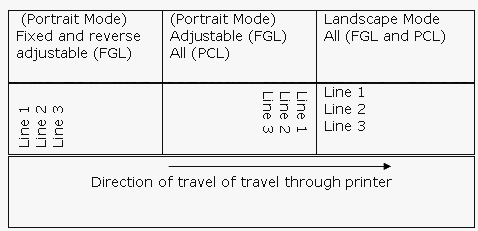
<rte> command.) Please note the manner in which the printer formats
the ticket in the various scenarios shown below.
 |